
Every new deal and every win, posted to Slack
The Funnelfeedr Slack app announces deals as they are created and won in Funnelfeedr, with the products, prices and terms that were actually agreed. Your team gets to celebrate, and finance knows what was sold without asking in a thread.
Installation starts inside Funnelfeedr, so you need a Funnelfeedr account.
A win message should say what was sold
Most CRM bots post a company name and a headline value. Then someone asks whether it is monthly or one-off, how many seats, and for how long. Funnelfeedr posts the full picture the first time.
Deal created
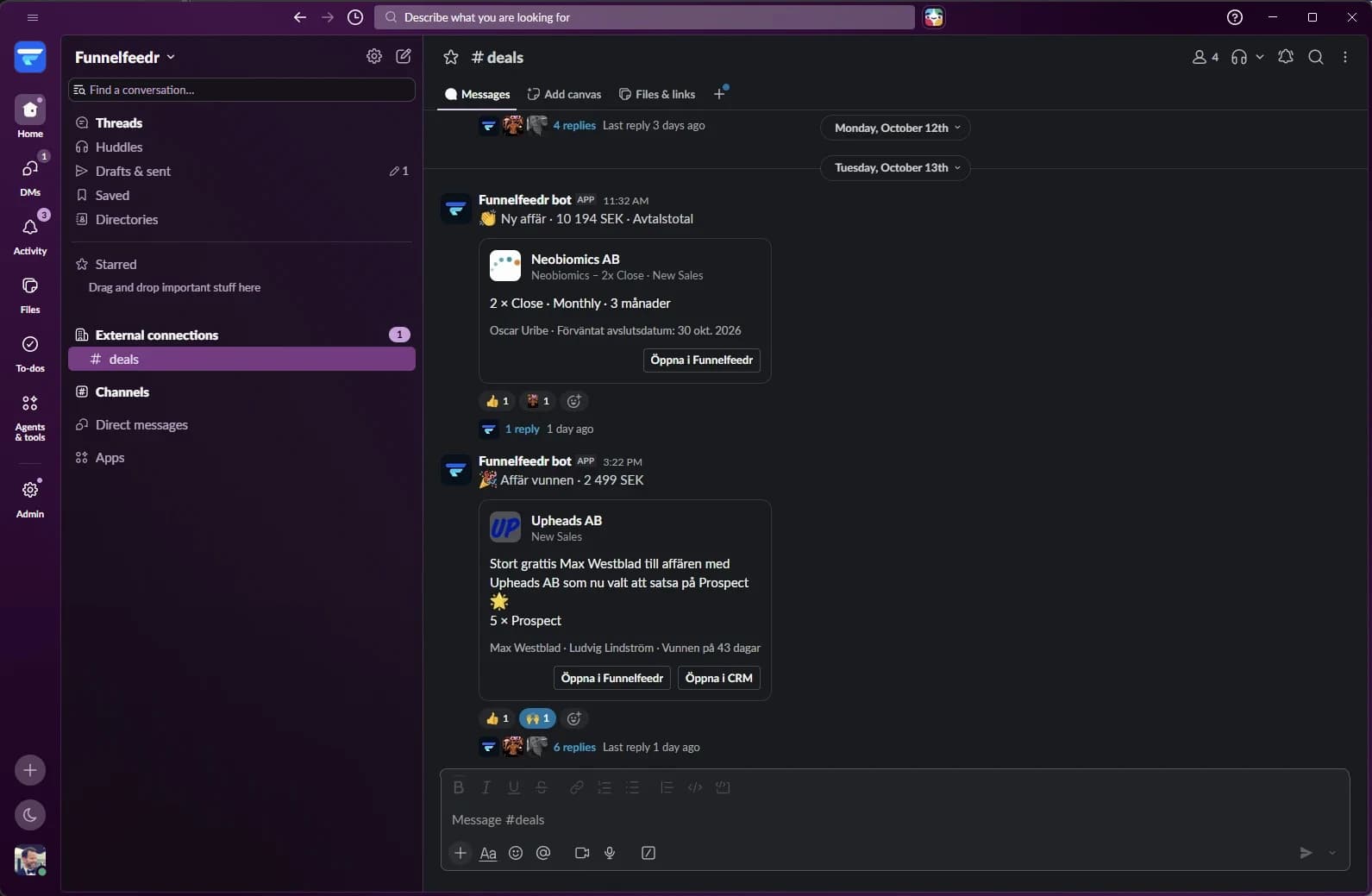
When a rep creates a deal, or approves one suggested by AI, the channel sees the customer, products, value and expected close date.
Deal won
When a deal is marked won or moved to a won stage, the post shows owner, contact, products and how long it took to close. An optional AI line adds a bit of celebration.
Products and terms
Quantities, agreed prices, currency, and one-off versus recurring amounts come from the saved deal. Missing terms stay blank instead of being guessed.
One click back
Open the deal in Funnelfeedr, or in your CRM when the deal is linked, straight from the message.
What your channel sees
Each announcement is a single message with a deal card. Teammates react and reply in the thread like with any other message.
Connect Slack in four steps
The app is installed from Funnelfeedr, so the workspace is linked to your Funnelfeedr account from the start.
Open Slack settings
Sign in to Funnelfeedr and go to Settings > Data & Integrations > Slack. You need permission to edit account settings.
Connect your workspace
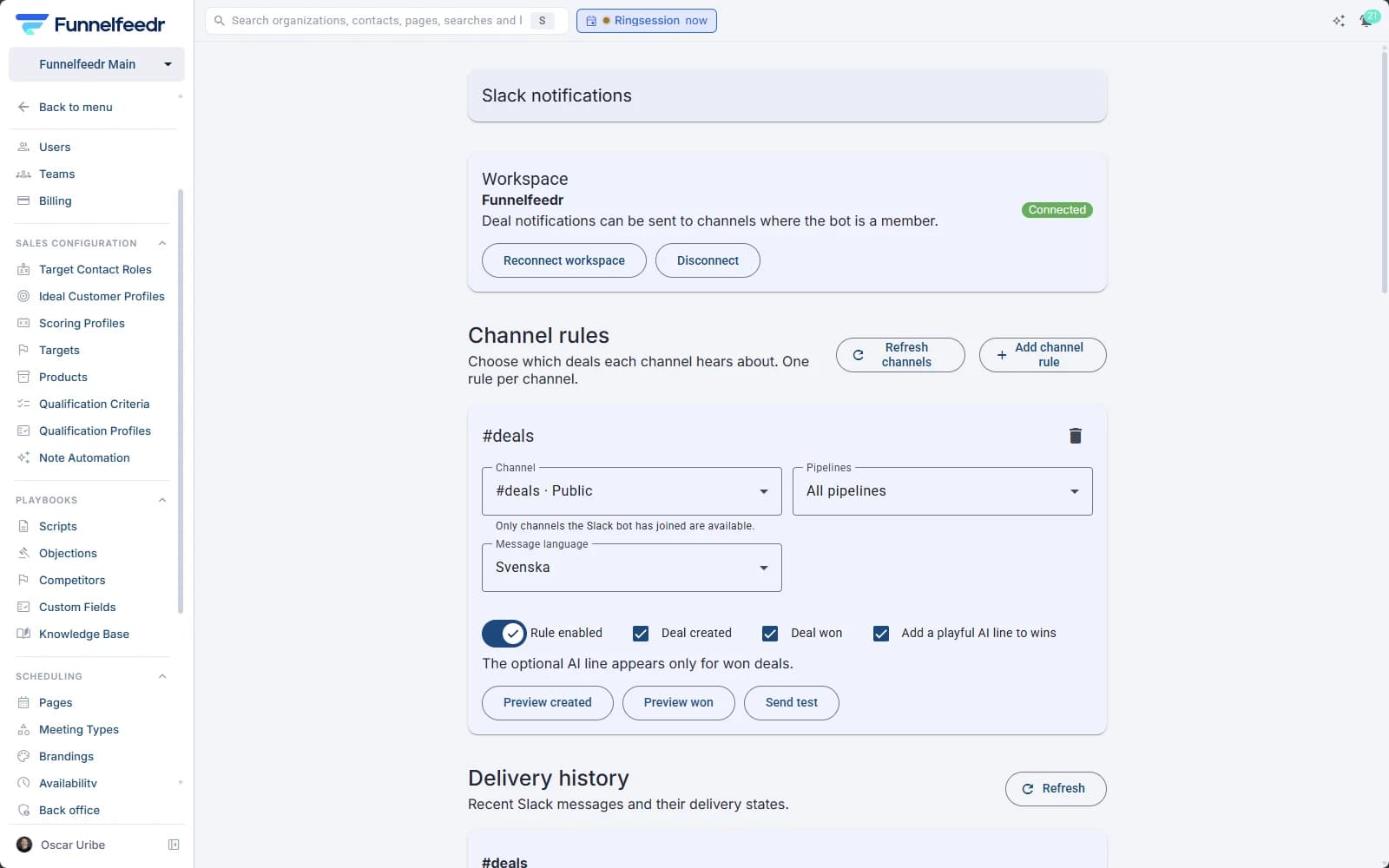
Click Connect Slack and approve the Funnelfeedr app in Slack. Slack sends you back to Funnelfeedr, where the workspace shows as Connected.
Invite the bot
In each channel you want to use, type /invite and pick the Funnelfeedr bot. Public and private channels both work.
Add a channel rule
Choose the channel, all or specific pipelines, deal created and deal won, and the message language. Send a test post to check it.
After you install
You land on the Slack page in Funnelfeedr settings with your workspace connected. From there you add channel rules, preview both message types and send a test post. Only actions taken in Funnelfeedr trigger posts, so CRM syncs and imports never flood the channel.
What the app can access
The app posts messages. It does not read the conversations in your channels.
chat:writePost deal announcements in the channels the bot has been invited to.
channels:read, groups:readList the public and private channels the bot is a member of, so you can choose one in Funnelfeedr.
users:read, users:read.emailMatch a Funnelfeedr user's email address to their Slack user, so the post can name the right person.
Deal details in the messages come from your Funnelfeedr account and are handled as described in our Privacy Policy. Disconnecting in Funnelfeedr stops all posts, and you can remove the app from your Slack workspace at any time.
Bring your deals into Slack
Already using Funnelfeedr? Connect your workspace now. Not yet? Book a demo and we will show you the Slack app along with the rest of Funnelfeedr.